AeroSports
Kiosk Host & Room Control (.NET WebView)
WinForms orchestration layer between the Kiosk UI, Scorecard UI, Game Engine, backend API, and room hardware.
Company
AeroSports
Role
Runtime orchestration + hardware coordination
Stack
.NET WinForms + WebView + sockets + hardware IO
Deployment
Room PC runtime coordinating displays, engine, API, and devices
Status
Production host runtime across active rooms
Tech Stack Overview
Grouped by the primary systems, languages, and infrastructure used in this build.
Frameworks
.NET 8, WinForms
Libraries
WebView2, System.IO.Ports, log4net
Languages
C#, PowerShell
Infrastructure
Sockets
Supporting Systems
Kiosk UI, Backend, Room Devices, Controllers
AeroSports
Kiosk Host & Room Control (.NET WebView)
WinForms orchestration layer between the Kiosk UI, Scorecard UI, Game Engine, backend API, and room hardware.
Company
AeroSports
Role
Runtime orchestration + hardware coordination
Stack
.NET WinForms + WebView + sockets + hardware IO
Deployment
Room PC runtime coordinating displays, engine, API, and devices
Status
Production host runtime across active rooms
Tech Stack Overview
Grouped by the systems, languages, and supporting layers used in this project.
- Frameworks
- .NET 8, WinForms
- Libraries
- WebView2, System.IO.Ports, log4net
- Languages
- C#, PowerShell
- Infrastructure
- Sockets
Coordinates runtime state and data exchange across the room stack.
- Supporting Systems
Orchestrates the surrounding AeroSports applications and device endpoints.
Overview
The Kiosk Host & Room Control application is one of the core software systems used in the facility.
Built in .NET WinForms, it acts as the orchestration layer between the Kiosk UI, Scorecard UI, Game Engine, backend API, and the physical room hardware.
This software does not directly interact with customers. Customer interactions happen through the Kiosk UI, while the host application manages the runtime behavior behind the scenes.
Its responsibilities can be grouped into four major areas:
- Display control
- Game Engine launch and runtime control
- Room device control
- Backend/API coordination
Originally, this logic was tightly integrated with the Game Engine as one large application. As both systems grew, they were separated into two dedicated software layers because they served very different purposes.
Architecture
The host sits in the middle of the room runtime, coordinating display layers, realtime engine traffic, API submission, and direct device control.
The Kiosk Host acts as the central runtime coordinator for the room.
It displays two web applications through WebView:
- Kiosk UI
- Scorecard
It communicates with both and also maintains communication with:
- Game Engine
- Backend API
- Room Hardware
Core flow
-
Kiosk UI sends selected game settings to the host:
-
game variant
-
player information
-
game type (single player, multiplayer, custom)
-
room/session actions
-
Host launches the Game Engine with the required arguments
-
Game Engine continuously sends realtime status back to the host through socket communication
-
Host distributes that data to:
-
Kiosk UI
-
Scorecard
-
Backend API (when needed)
-
Host also handles the final score submission to the API once a game ends
Scorecard communication
The Scorecard is a separate web application displayed through WebView.
The host sends it:
- game type
- scores
- player information
- game progress
- game timer
- other realtime session data
Player info comes from the Kiosk UI, while most realtime session/gameplay data comes from the Game Engine.
Core Responsibilities
1. Display Control
The host manages room display configurations including:
- 1-screen setup -> Kiosk only
- 2-screen setup -> Kiosk + Scorecard
- 3-screen setup -> Kiosk + Scorecard + Display screen
This made the host responsible for multi-display orchestration and routing the right content to the right monitor.
2. Game Engine Launch & Runtime Control
The host receives game/session instructions from the Kiosk UI and launches the correct Game Engine instance with all required arguments, such as:
- selected variant
- number of players
- game type
- room-specific hardware settings
- test vs actual run
After launch, it continuously exchanges runtime data with the engine and redistributes that information to the UI layers.
3. Room Device Control
The host provides direct control over room hardware such as:
- wristband scanner
- door lock
- restart button
- game controllers
- screens
- room-specific devices
For example, the host communicates with the wristband scanner by:
- receiving scanned UID values
- sending color signals
- starting/stopping scan mode
- sending acknowledgement signals
This hardware control layer is one of the reasons the host remained a native WinForms application instead of moving fully into the web layer.
4. Backend / API Coordination
The host is also responsible for coordinating backend-facing runtime operations, including:
- relaying data to UI layers
- handling score submission after game completion
- keeping session/runtime information synchronized
It acts as a bridge between the realtime room runtime and the broader backend system.
Admin Panel & Hardware Control
The Admin Panel was intentionally built in WinForms, not inside the Kiosk UI.
That decision gave us much deeper control over:
- Windows OS behavior
- hardware access
- room diagnostics
- recovery workflows
To open the admin features, staff perform a hidden screen pattern gesture, then enter a password.
Once authenticated, they can access advanced tools such as:
- simulate player scan
- lock / unlock door
- restart app
- restart PC
- check hardware status
- view warnings and alerts
- test LEDs
- verify sensors
- switch scorecard/display monitors if monitors were assigned incorrectly
The host also includes a dedicated hardware status / control screen for staff and developers to monitor room devices and troubleshoot issues directly.
Evolution
The Kiosk Host evolved significantly over time.
Early version
- integrated directly with the Game Engine
- only scanned players
- launched the game
Later improvements
As the facility grew, the host evolved from a simple launch utility into a full room orchestration runtime.
Challenges
This was one of the most complex room applications because it sat between many systems at once.
Kiosk mode + auto launch
One of the earliest challenges was making the system behave like a proper kiosk appliance on Windows. We solved this using PowerShell scripts for s...
One of the earliest challenges was making the system behave like a proper kiosk appliance on Windows.
We solved this using PowerShell scripts for startup behavior and room runtime control.
These scripts were later expanded for several other operational needs too.
Multi-screen management
Supporting 2 screens was relatively straightforward. Supporting 3 screens was harder. The biggest issue came from: Because the monitors could appea...
Admin actions that mattered operationally
Every admin menu option existed because of a real operational problem. Examples: In kiosk mode, restarting the app otherwise required using the phy...
Reliability & Operations
To improve stability, we also added watchdog behavior using PowerShell.
The watchdog checked:
- whether the host application was running
- whether hardware was responding correctly
If problems were detected, it could:
- restart the app
- restart hardware drivers
- attempt to restore room functionality automatically
This made the room software more resilient in real operating conditions.
Operational tooling
- Restart App simplified recovery inside kiosk mode
- Close App restored Explorer when kiosk mode needed to be exited
- Update pulled the latest build while preserving room-specific settings and files
- Simulate Scan supported developer workflows, staff demos, and temporary scanner issues
- PowerShell scripts handled startup behavior, auto-launch, and watchdog recovery
My Contribution
I have been involved in this project from the beginning, alongside the other AeroSports software systems.
My contribution included:
- helping build the host application from its earlier versions
- separating it from the Game Engine
- adding the admin panel
- implementing/loading screens and runtime workflows
- building and improving hardware control features
- contributing to PowerShell-based operational tooling
This was a collaborative project, and my teammates helped implement several features across the system.
I reviewed their work as part of the development process, and some of the best reliability ideas - especially the watchdog and several of the kiosk scripts - came from the team and worked out very well in practice.
Tech Used
Core technologies
 .NET
.NET C#
C#Supporting technologies
Related Projects
Other projects from the same platform and codebase.
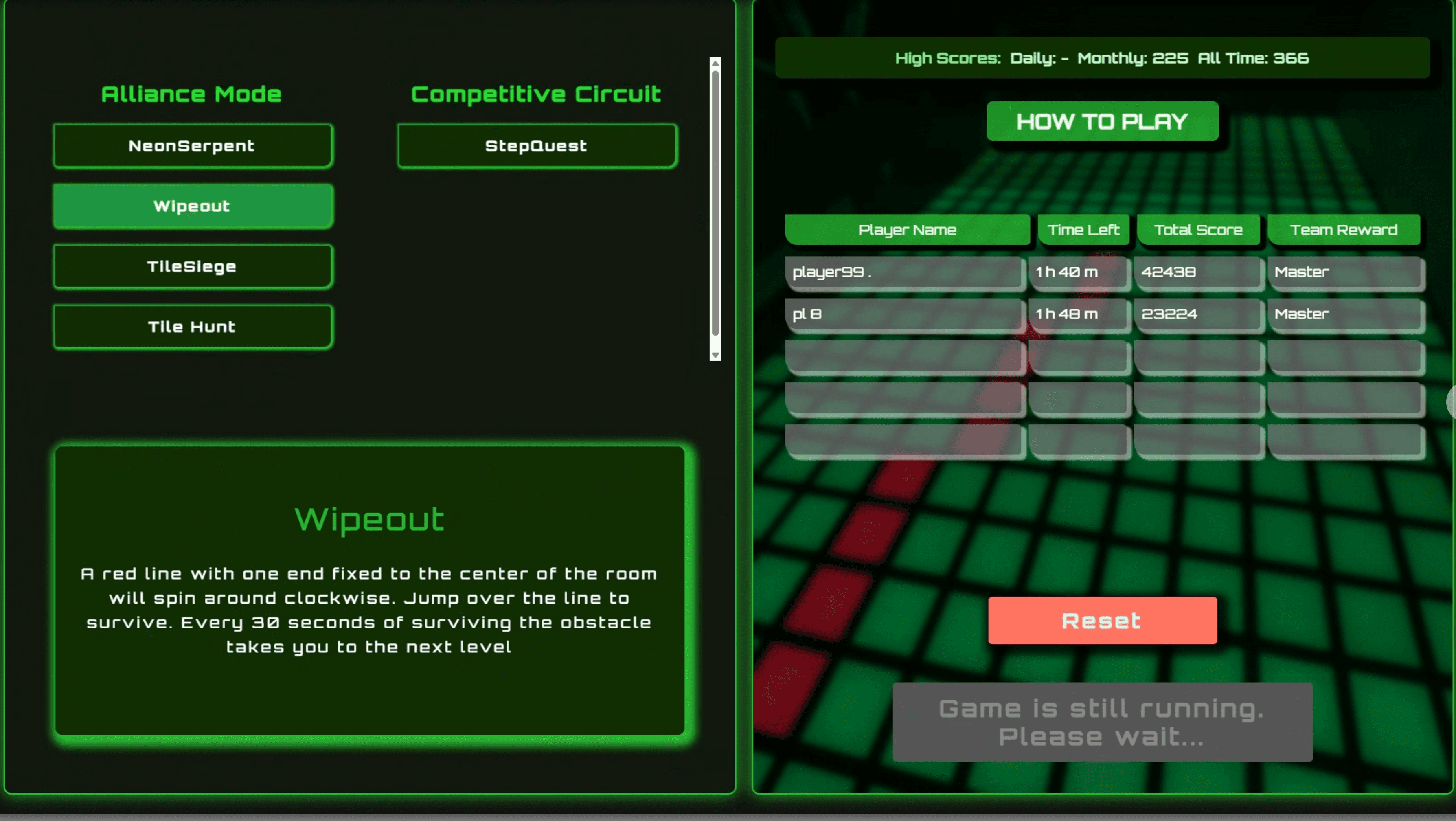
Kiosk UI (Next.js)

Customer and staff-facing kiosk UI for room readiness, player scans, variant selection, and session controls.




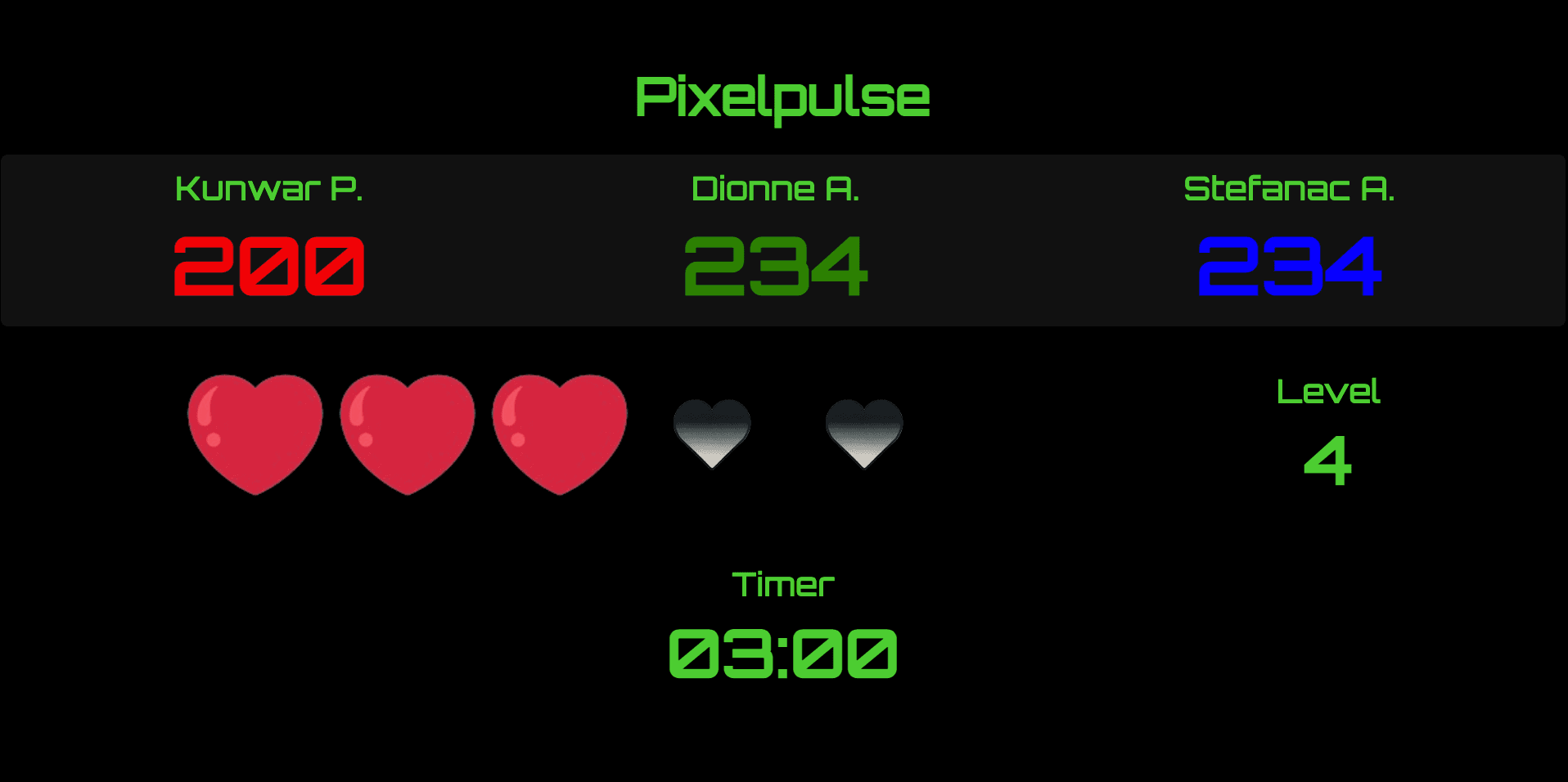
Scorecard (Next.js Realtime Display)
Realtime score display rendered in a secondary WebView, designed to show game state, scores, timers, lives, and mode-specific information with minimal latency and high readability.
 WJS
WJS