AeroSports
POS & Wristband Management (WPF)
Staff-facing WPF application for initializing, registering, renewing, and managing NFC wristbands and player records through the backend API.
Stack
WPF desktop app
Workflow
NFC wristband operations
Surface
4 core operational pages
Users
Staff-side player management
Data
API-driven database access
Tech Stack Overview
Grouped by the primary systems, languages, and infrastructure used in this build.
Frameworks
.NET 9, WPF
Languages
C#, XAML
Hardware
Handscanner
Supporting Systems
Backend
AeroSports
POS & Wristband Management (WPF)
Staff-facing WPF application for initializing, registering, renewing, and managing NFC wristbands and player records through the backend API.
Stack
WPF desktop app
Workflow
NFC wristband operations
Surface
4 core operational pages
Users
Staff-side player management
Data
API-driven database access
Tech Stack Overview
Grouped by the systems, languages, and supporting layers used in this project.
- Frameworks
- .NET 9, WPF
- Languages
- C#, XAML
- Hardware
- Handscanner
- Supporting Systems
Overview
The POS & Wristband Management system is a .NET WPF desktop application used by staff to manage NFC wristbands and player records.
It was originally built for one simple purpose:
- initialize a wristband with time / game allocation
- let players complete registration themselves on the registration tablet
Over time, it evolved into a much more capable operational tool.
Today, it is used to:
- initialize wristbands
- register players directly
- renew old wristbands
- search and edit player records
- manage player details, time, and related wristband history
It communicates with the backend through the API and serves as one of the main staff-facing operational tools in the facility.
Architecture
The POS runs on the staff-side PC with an NFC reader attached. It reads and writes wristband and player data through the backend API and supports multiple operational workflows for registration, lookup, renewal, and initialization.
Core Pages
The POS includes 4 major pages.
1. Register
The Register page allows staff to create player records and bind a new wristband to them.
Staff can:
- enter the player's email (primary key)
- set their actual/game name
- assign time allocation to the wristband
- scan a new wristband when prompted
- bind the wristband to that player
It also supports family/group workflows:
- if a player is a minor, the parent can be registered as the primary account
- children can then be added under the same email
This made it easier to handle real family registration instead of forcing separate isolated entries.
2. Lookup
The Lookup page is one of the most feature-rich parts of the application.
It allows staff to:
- view all players in the database
- search players through the search bar
- inspect their records such as:
- wristbands used
- games played
- scores
- time remaining
- edit player information:
- name
- children / dependents
- child information
- add more time to a wristband if needed
This page turned the POS into more than a scanner tool - it became a practical management system for day-to-day staff operations.
3. Renew
The Renew page supports returning players who already have an old wristband.
Instead of entering all the information again, staff can:
- scan the old wristband
- retrieve the linked record
- add more time directly
This makes repeat visits much faster and more convenient.
4. Initialize
The Initialize page supports fast preparation when staff are busy.
In this mode, staff can:
- scan a blank wristband
- add the time allocation
- skip full player registration at the POS
The player can then complete registration later using the registration tablet.
This created a faster fallback workflow during peak traffic.
Interface Evolution
The earliest version of the POS was much simpler.
It used to be:
- a small WinForms dialog
- a time dropdown
- a wristband scan action
- just enough to initialize a wristband for later registration
Players then had to complete everything on the registration tablet.
That approach became insufficient as usage patterns grew more complex.
Why the old flow was not enough
For events like: the old flow created several problems: There were also management limitations:
For events like:
- school trips
- birthday parties
- larger groups of children
the old flow created several problems:
- teachers / parents / guides had to spend too long scanning and managing players
- time started immediately after initialization
- some players would lose fair play time before they were actually ready
There were also management limitations:
- changing player info later required going through the admin panel or developers
- staff were not given enough operational control
- the old UI was limited and not well suited for growth
Transition to WPF
We moved the application to WPF and redesigned the interface using XAML. This gave us:
Major additions after the redesign
This transformed the POS from a basic initializer tool into a proper staff operations system.
Challenges
1. Designing the right operational workflow
The first challenge was deciding on the architecture that would let both players and staff use the system efficiently. We needed a workflow where:...
The first challenge was deciding on the architecture that would let both players and staff use the system efficiently.
We needed a workflow where:
- wristbands could be introduced into the system quickly
- staff could work fast during rush periods
- players could still complete registration later if needed
That led to the initialization-first model, which became the base for the broader registration workflow.
2. Expanding the database and process model
As we added more features, the old data model and process assumptions were no longer enough. We had to modify database structures to support: One i...
3. Moving from WinForms to WPF
Another challenge was changing the application into a WPF system. This required: One of my teammates had stronger WPF experience and suggested the...
4. Staff adoption and operational handoff
The new version was a major upgrade with many more features. That also meant it could feel overwhelming for staff at first. So the challenge was no...
My Contribution
I worked on the POS as part of the broader AeroSports software ecosystem and contributed to both the feature evolution and the operational workflow design.
My contribution included:
- helping define the workflow architecture for initialization, registration, renewal, and lookup
- contributing to the transition from a minimal WinForms tool into a full WPF application
- helping align POS behavior with the registration tablet system
- improving messaging, alerts, and user flow clarity
- supporting rollout, training, and staff adoption through documentation and guide materials
This project was also collaborative.
One of my teammates had stronger WPF experience and played an important role in helping complete:
- the new WPF/XAML UI
- page structure
- feature development
Together, we turned the POS from a limited initializer into a much more capable staff operations tool.
Tech Used
Core technologies
 .NET
.NET C#
C#Supporting technologies
Related Projects
Other projects from the same platform and codebase.
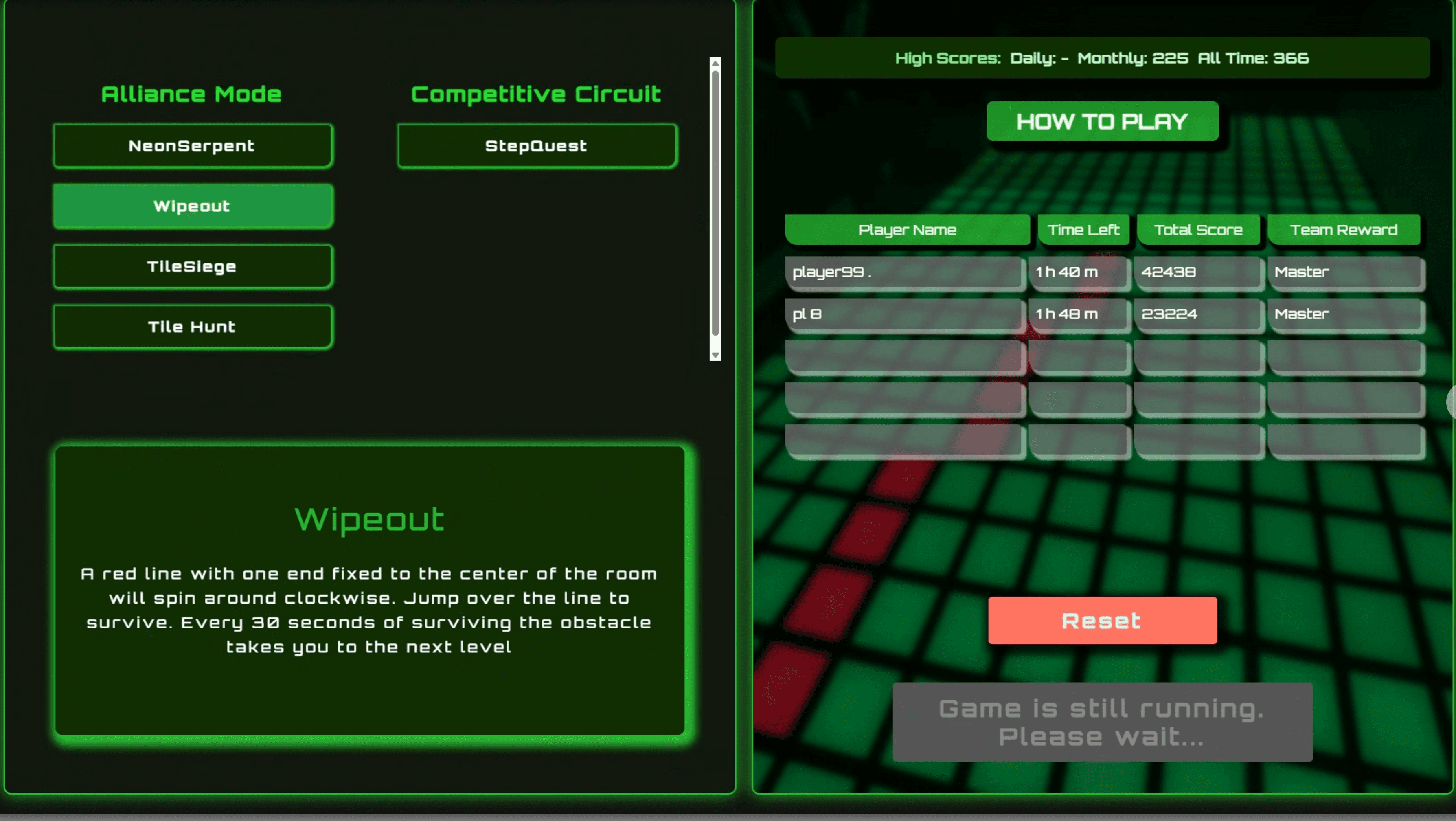
Kiosk Host & Room Control (.NET WebView)

WinForms orchestration layer between the Kiosk UI, Scorecard UI, Game Engine, backend API, and room hardware.
WCPUS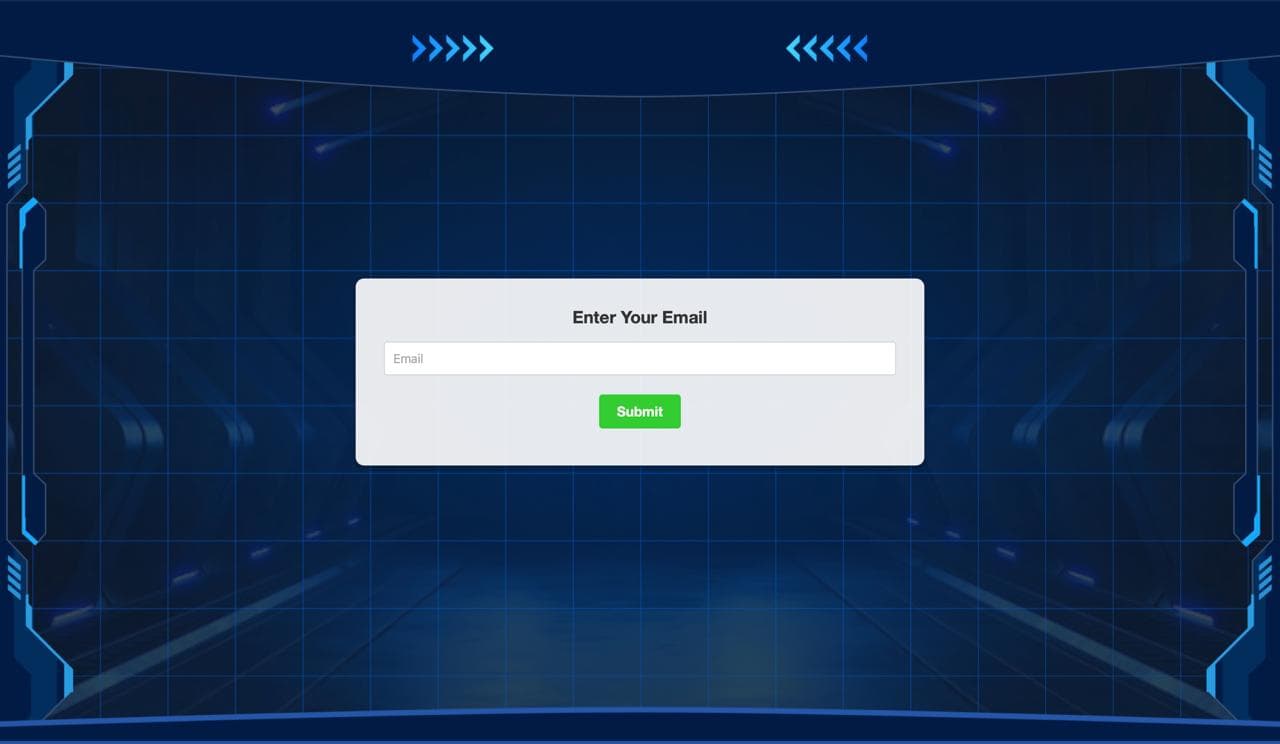
Registration Tablet System (MAUI + Next.js)
Self-service player registration system using MAUI kiosk tablets and a hosted Next.js interface with NFC wristband scanning.



 M+2
M+2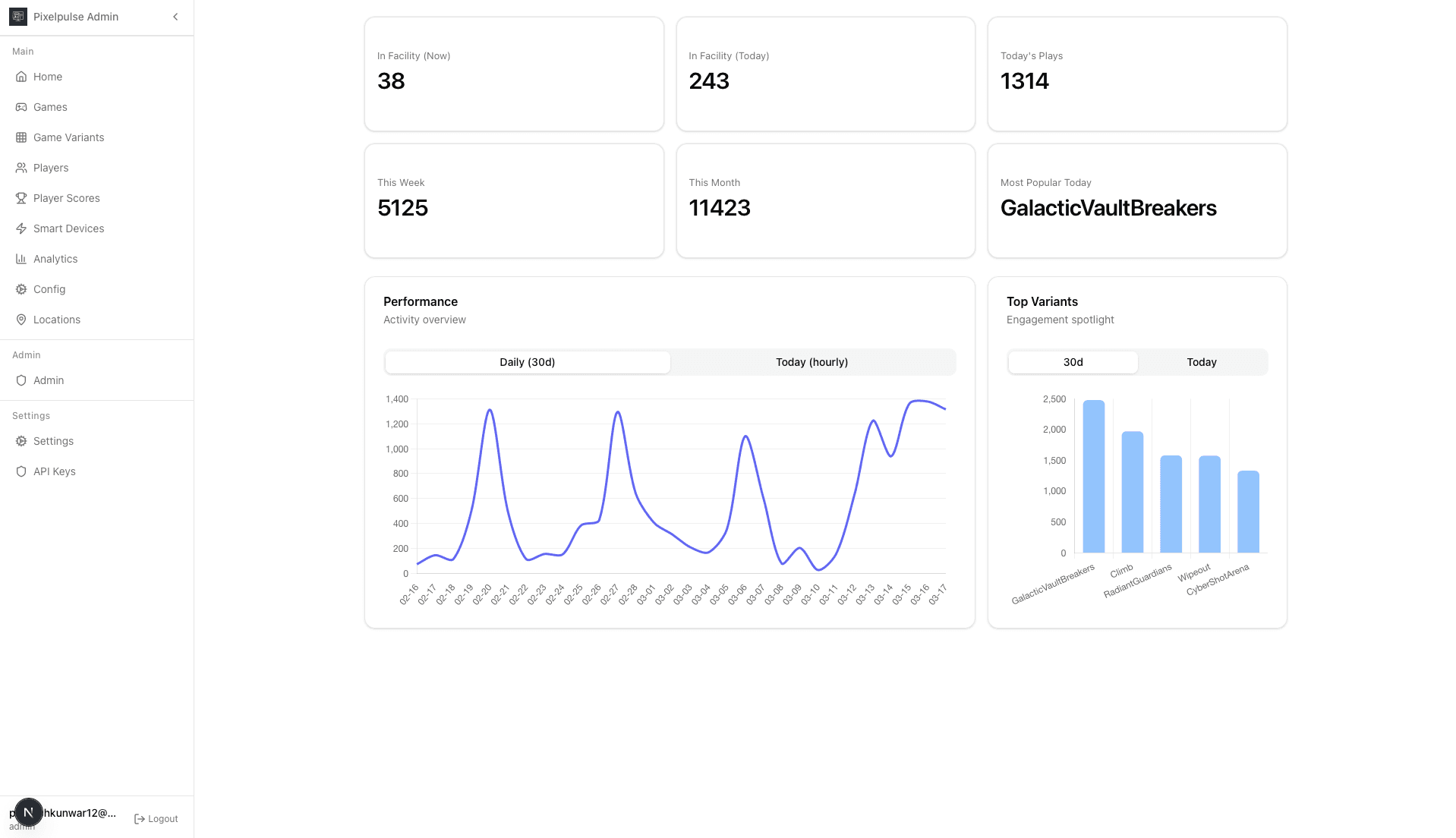
Admin Portal (Platform Control & Analytics)
Centralized web platform for managing games, players, analytics, smart devices, and documentation with authentication and role-based access control.
JAC/A